
Locking and Unlocking with the App
The keypad of a thermostat is “unlocked” by default. This means the buttons (or keypad) are “functional” and the thermostat can be controlled manually, directly from the device. It is possible to lock the thermostat buttons to prevent any unintended setpoint changes.
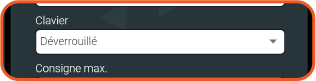
You can lock the buttons on your device by selecting this option in the device settings within Neviweb.
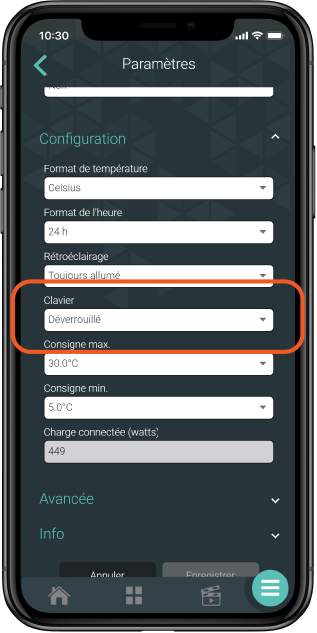
Locking Options
The buttons can be locked with different options (full lock or limited lock, the latter only allows changing the setpoint and prevents configuration and device disconnection).
(Pro Tip) This feature is especially useful for short-term rentals and families with young children to avoid any accidental handling.
Unlocking Without the App
- Unplug the Wi-Fi router.
- Turn off the thermostat circuit breaker, wait a few seconds, then turn it back on.
- Wait a few seconds; the thermostat will unlock.
- Then perform the thermostat reset
- Thermostat reset
- Touch the temperature to access the main menu.
- Press the “Gear” icon.
- Select “Equipment Setup.”
- Confirm by selecting “Continue.”
- Press the down arrow until the “Reset” option appears.
- Select “Device Reset.”
- Confirm by pressing “Yes.”
- Thermostat reset
- Plug the router back in.
- Reconnect the thermostat by clicking “Add a Device” in Neviweb.
Product models associated with this article:
- (Wi-Fi) TH6250WF, TH6250WF-PRO, TH6500WF