[render_menu Professionnels]
[render_menu "Service client"]
[render_menu "En savoir plus"]
Learn how to customize your thermostat
Smart Lite
Learn how to customize your thermostat
Smart Lite
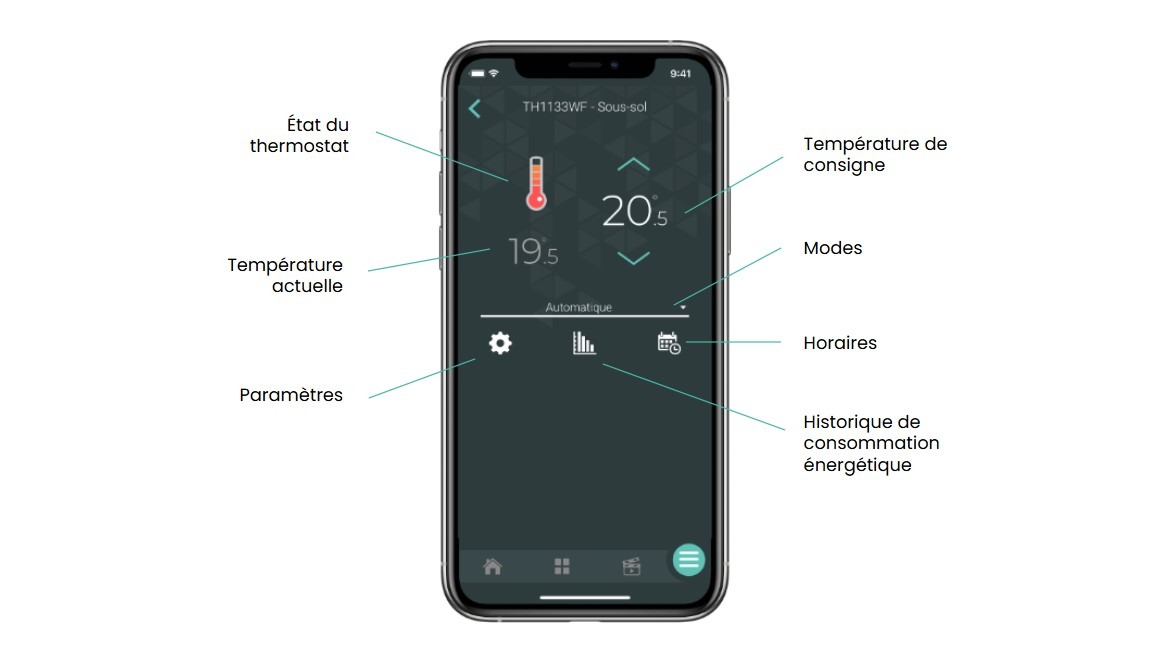

The temperature detected by
the thermostat

The temperature you wish to achieve in the room. You can increase or decrease the setting by pressing the arrows.

The graphical representation of the thermostat’s status. This is where you can see if the thermostat is currently heating.
The thermometer level represents the heating period of the thermostat.
When the thermostat is not in heating mode, the color of the thermostat changes to turquoise.

This is where you can customize and modify the various thermostat settings, which are explained later.

You can view the energy consumption graph for this device here.
You will find more details on consumption graphs in this article:

Programming your Wi-Fi thermostat is done by setting schedules.
You can program up to twelve periods per day.
You can select different modes for your Wi-Fi thermostat: automatic, manual and off.
See what the properties of each of these modes are.
When you have multiple Lite thermostats in the same location, it can be convenient to rename them or assign them to a particular room.
This feature can also be very useful if you use voice assistants like Google Assistant or Alexa.
To do this, you need to access the thermostat settings by pressing the icon in Neviweb.
It is in the settings section that you can personalize your use of the Lite smart thermostat by configuring the various parameters.
The temperature format displayed on the thermostat screen
Adaptive:
The screen backlight is always on and its intensity adjusts according to the ambient light.
Upon request:
The backlight turns on when you press the thermostat buttons and turns off after 12 seconds.
Bedroom :
The backlight adjusts according to the ambient light and turns off when the brightness is less than 20%.
Enables or disables the device buttons
Unlocked: activates the device buttons.
Locked: disables the device buttons.
Limited: only allows modification of the setpoint. Limits device configuration and disconnection.
The code “LC” is displayed on the thermostat screen if the “Locked” or “Limited” option is selected.
The minimum setpoint temperature available on the thermostat
The maximum setpoint temperature available on the thermostat
The setpoint temperature assigned to the thermostat when the network is in absence mode
Early start only works in auto mode. When activated, the thermostat determines the heating activation time so that the desired temperature is reached at the programmed time.
The power in watts of the electrical load connected to the device. This value must be entered by the user and is used to evaluate energy consumption.
Adjust the length of the control cycle according to the type of heating appliance.
It is also possible to change the cycle length directly on the thermostat .
You can now start programming your thermostat and setting schedules.
Find below the problem you are experiencing to know what to do.
If you still need help , contact Sinopé technical support.
