
Search
[ivory-search id="43527" title="Thermostats"]

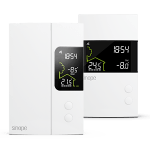
Add your Pro Lite smart thermostat
TH6250WF-PRO at Neviweb

Discover how to configure your new Pro Lite central heating (HVAC) thermostat using the Neviweb app

Add your Pro Lite smart thermostat
TH6250WF-PRO at Neviweb

Discover how to configure your new Pro Lite central heating (HVAC) thermostat using the Neviweb app

Before we begin

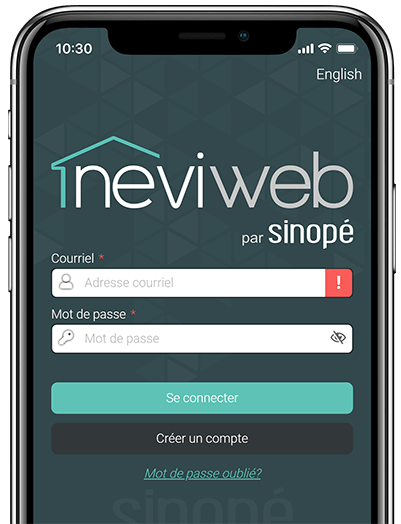
To configure and use your HVAC thermostat, you will first need to download the latest version of the Neviweb app, which is available on the App Store or Google Play Store.

You will also need to have previously installed the Pro Lite HVAC thermostat and ensure that Wi-Fi is enabled on your mobile device and that it is connected to a Wi-Fi network.

1

Go to the Device List page by pressing the center icon at the bottom of the application.

2

From the Room or All tab, tap + Add a device .

3

Go to the Thermostats section, select the device to add (TH6250WF-PRO) and follow the steps in the installation wizard.

Next step

You can now customize the settings of your Pro Lite smart thermostat for central systems (HVAC).

Search
[ivory-search id="43527" title="Thermostats"]

Find below the problem you are experiencing to know what to do.

If you still need help , contact Sinopé technical support.

We are pleased that this article helped you.