[render_menu Professionnels]
[render_menu "Service client"]
[render_menu "En savoir plus"]
Learn how to customize your water valve
Smart Wi-Fi / Zigbee
Learn how to customize your water valve
Smart Wi-Fi / Zigbee
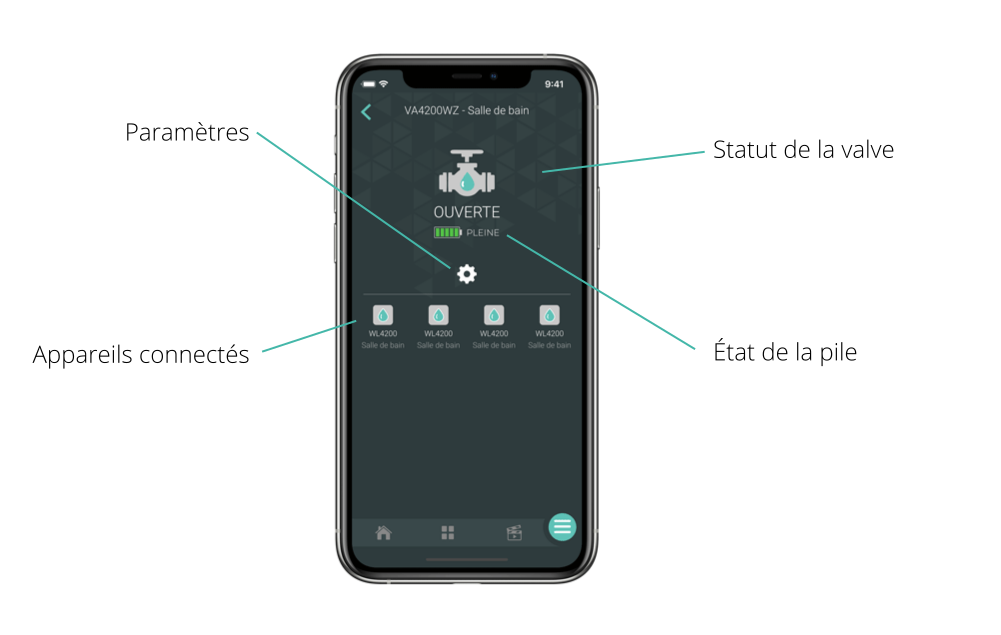
The graphical representation of the smart water valve’s status. This is where you can see if your water inlet is open or closed.
The drop icon represents the state of the valve.
When the valve is closed, an x appears on the drop to show that access to water is cut off.
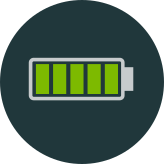
Graphical representation of the battery charge level of the smart water valve.
The battery color turns red when the batteries need to be changed.

This is where you can customize and modify the various settings of the smart water valve.
List of devices connected to the smart water valve. Several smart devices can interact with the smart water valve.
When you have multiple smart water valves in one location, it can be convenient to rename them or assign them to a particular room.
This feature can also be very useful if you use voice assistants like Google Assistant or Alexa.
To do this, you need to access the water valve settings by pressing the icon in the valve screen.
It is possible to receive email alerts when your valve batteries are low.
An alert message is sent by email when the device’s batteries are low.
The “Associated Devices” section provides an overview of devices that can interact with the valve. Furthermore, you can access the settings of these accessories through this section.
Find below the problem you are experiencing to know what to do.
If you still need help , contact Sinopé technical support.
