

Discover how to configure your new smart switch using the Neviweb app
Discover how to configure your new smart switch using the Neviweb app
To configure and use your switch, you will first need to download the latest version of the Neviweb app, which is available on the App Store or Google Play Store.
You will also need to have previously installed the switch , connected the Sinopé GT130 gateway to your Wi-Fi router or connected your Sedna valve to Wi-Fi, and ensured that Wi-Fi is enabled on your mobile device and that it is connected to a Wi-Fi network.
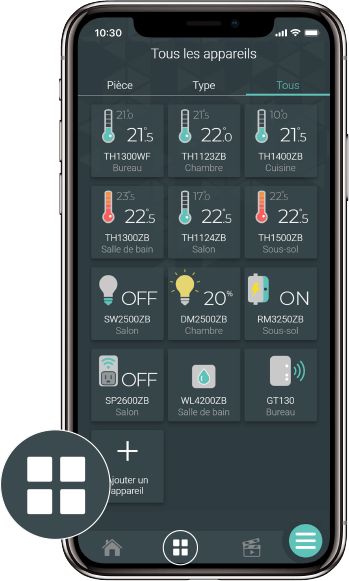
Go to the Device List page by tapping the middle icon at the bottom of the application.
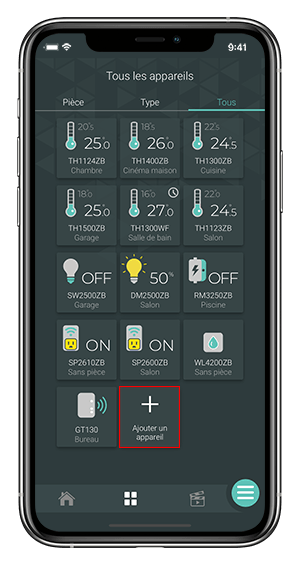
From the Room or All tab, tap + Add a device .
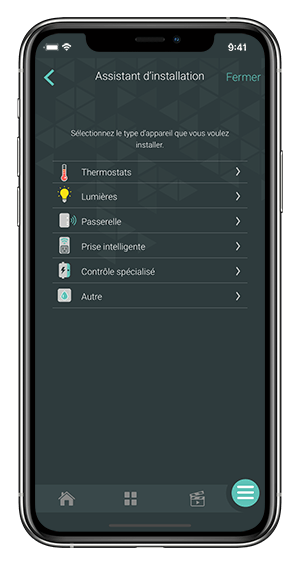
Select Lights , then the device you want to add.
Choose whether you want to connect the device to the GT130 gateway or the Sedna Wi-Fi valve and follow the steps in the setup wizard.
Find below the problem you are experiencing to know what to do.
If you still need help , contact Sinopé technical support.