


Schedules allow your Wi-Fi and Mi-Wi devices to follow your lifestyle, creating a comfortable environment at all times.
Schedules allow your Wi-Fi and Mi-Wi devices to follow your lifestyle, creating a comfortable environment at all times.
From the dashboard, navigate to the list of devices connected to your location.
Select the device that will follow your schedule.
Make sure you are in Manual mode, then tap the “Schedule” icon.
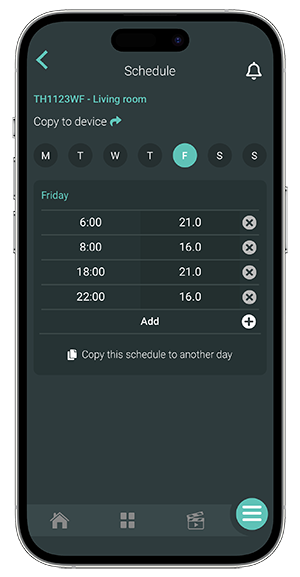
Select a day, then click on each period to enter the desired schedule. Save.
Use the « Copy this schedule to another day » button to use the same schedule for another day of the week. You can then use the « Copy to Device » button.
If the user has not programmed a schedule, the default schedule for Auto mode will be applied. This activates setpoint temperatures based on the Energy Star standard:
6:00 AM to 8:00 AM: 21°C
8:00 AM to 6:00 PM: 16°C
6:00 PM to 10:00 PM: 21°C
10:00 PM to 6:00 AM: 16°C
These setpoint temperatures can be changed at any time by the user by tapping the Schedule icon in the Sinopé Neviweb app.
For more details on device modes, please refer to this dedicated page.
Ce site est offert dans d'autre langue. Veuillez choisir votre préférence.